Product

Product

Hangzhou Gaoke Industry&trade Co., Ltd.

HOME >> Product >> Interactive Flat Panel >> R Series
R Series
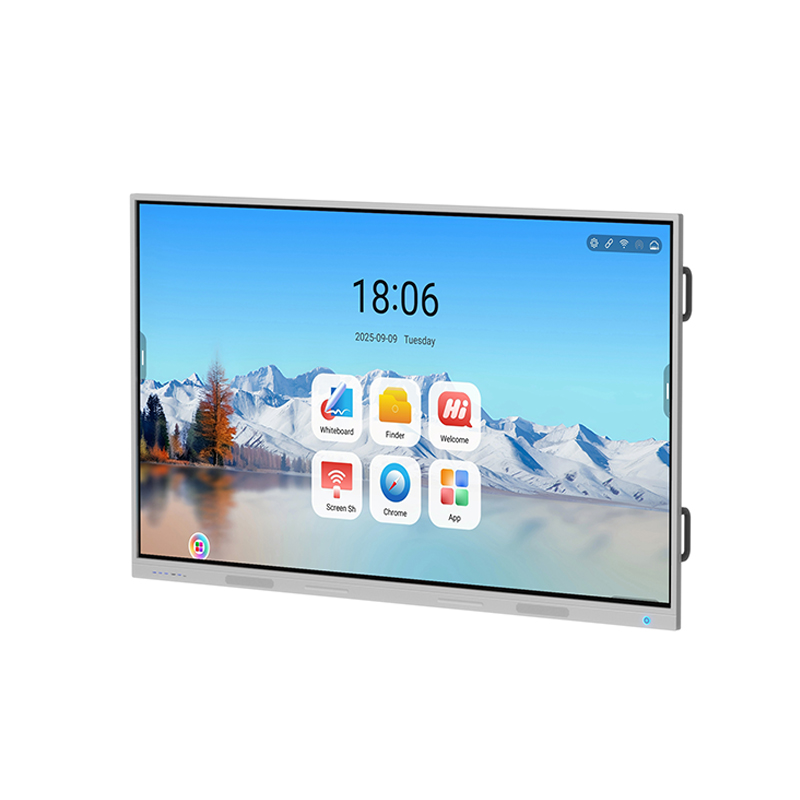
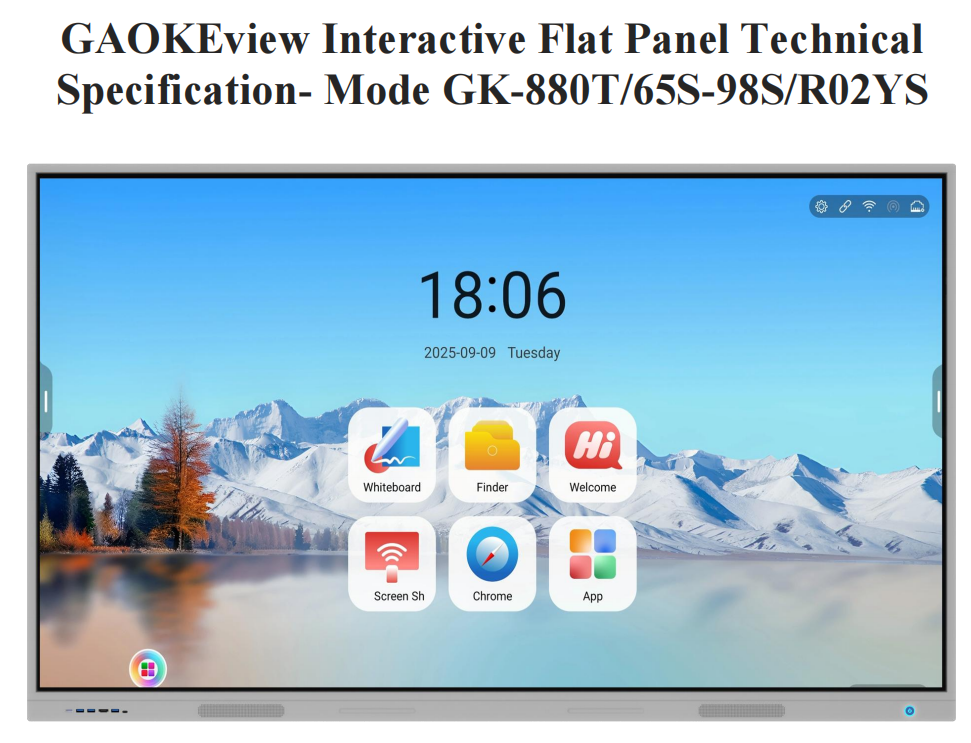
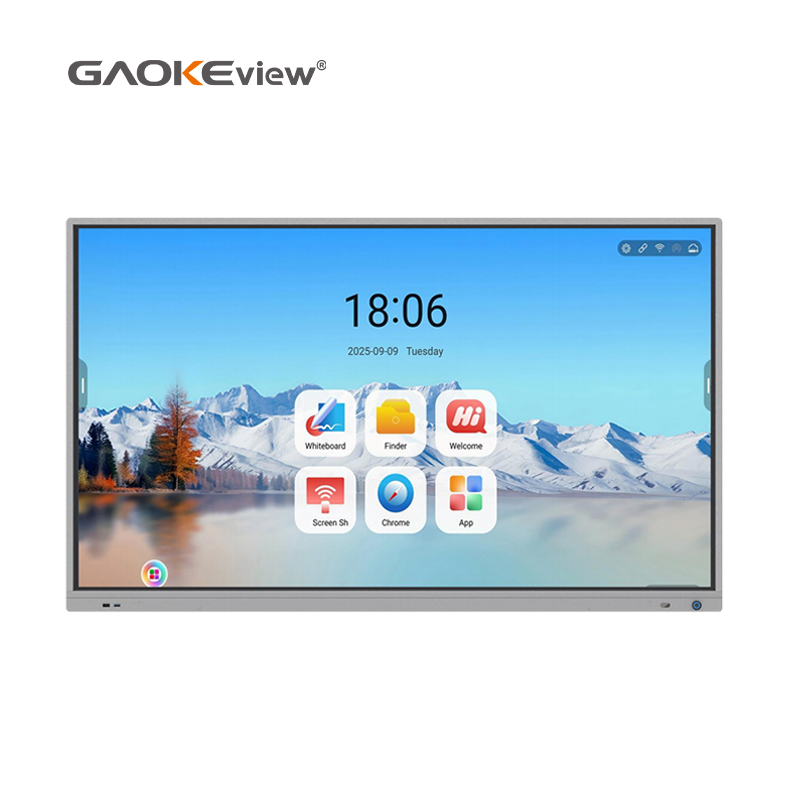
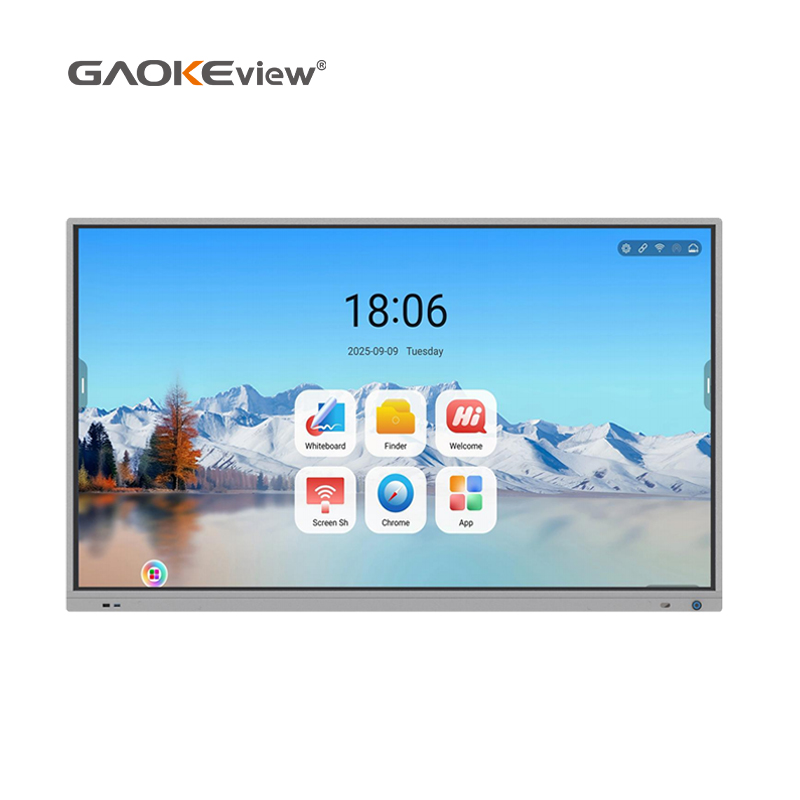
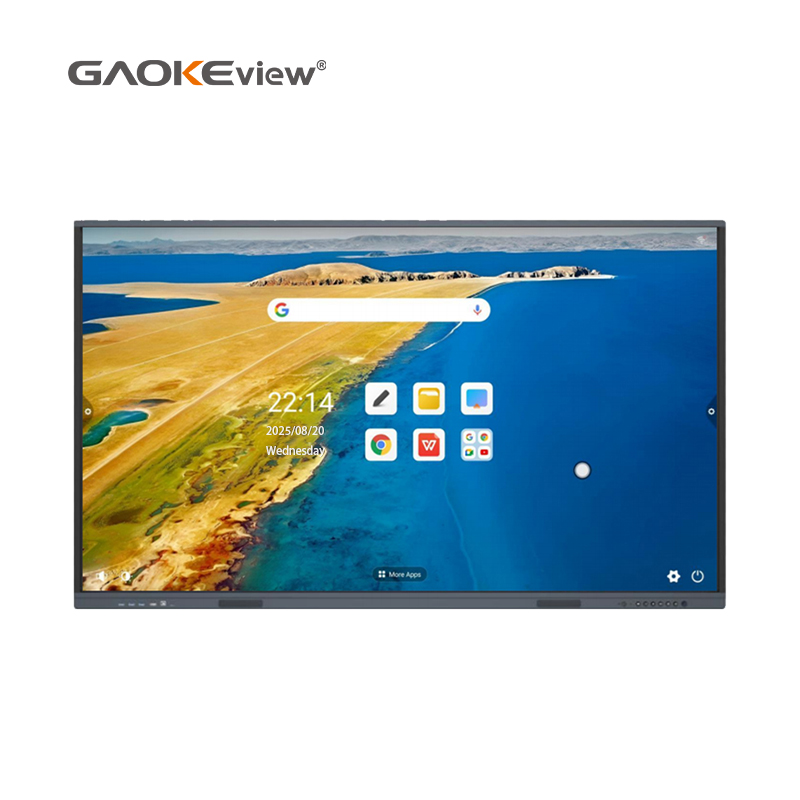
Interactive Flat Panel GK-880T-R02YS


Main Features


Support szie : 65-98 inch


Function:Android /Windows     Zero Bonding  Technology    Quick Meeting Minutes   AI voice assistant   

nr2-icon1.png

AI voice assistantnr2-icon2.pngQuick Meeting Minutes

nr2-icon3.png

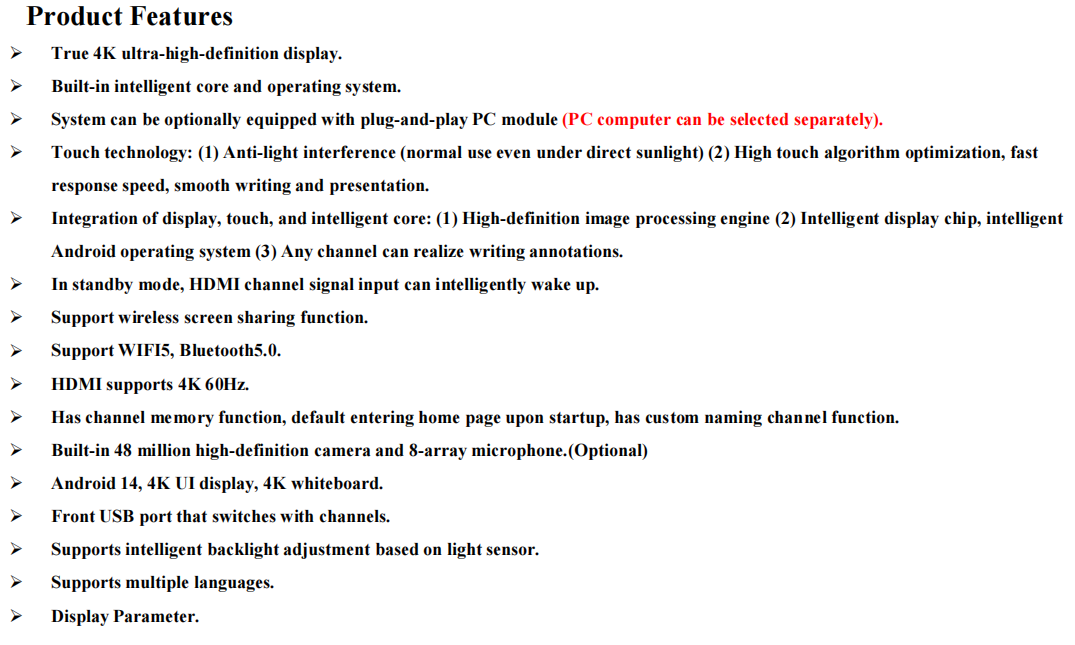
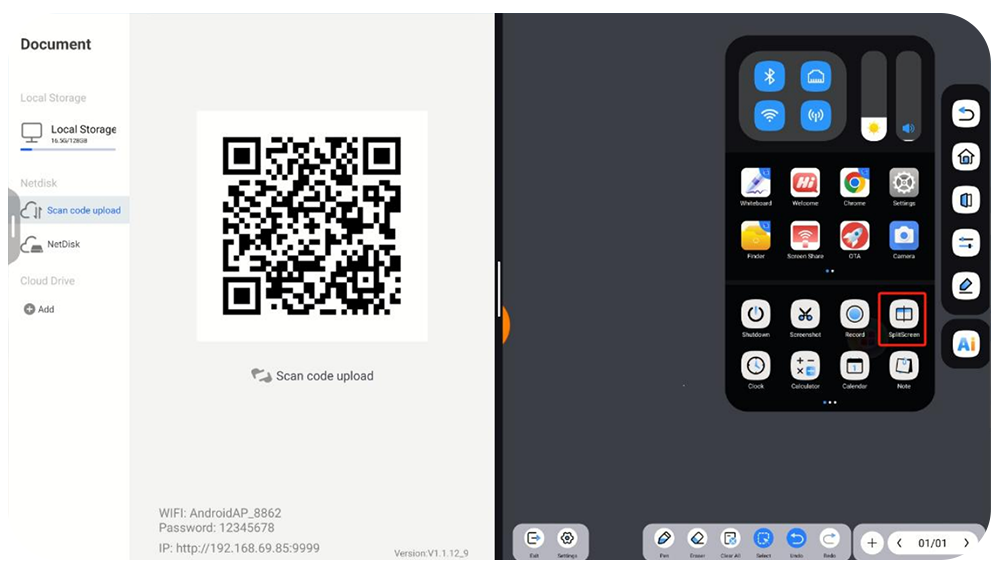
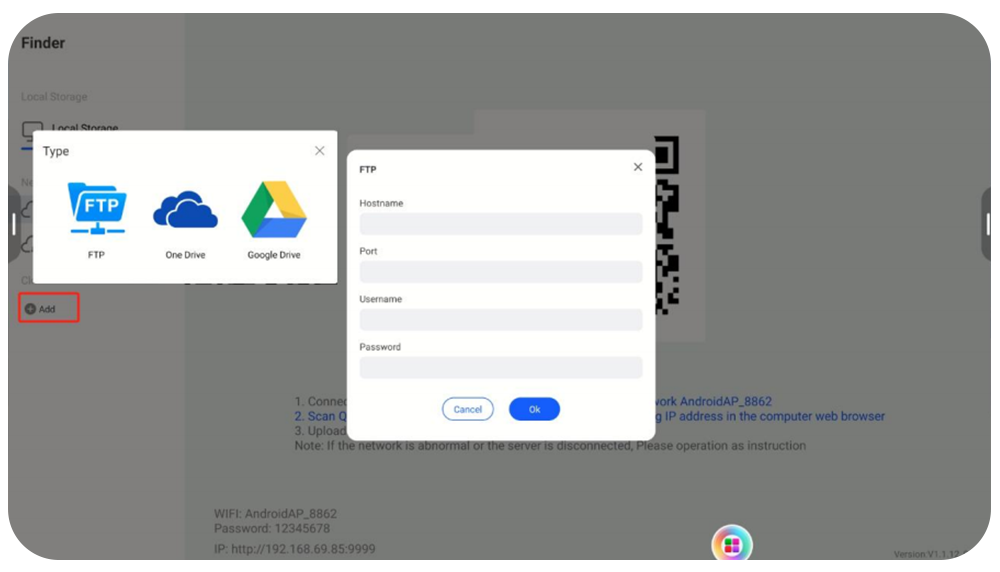
Support online OTA, local upgrade via USB drive, and online update of APK filesnr2-icon4.png Any split-screen
nr2-icon5.png

Safe lock:Support USB lock, HDMI lock, screen lock, and APK installation lock

nr2-icon6.png

Answering questions


image.png

image.png

微信图片_20250915140634_19_157.jpg


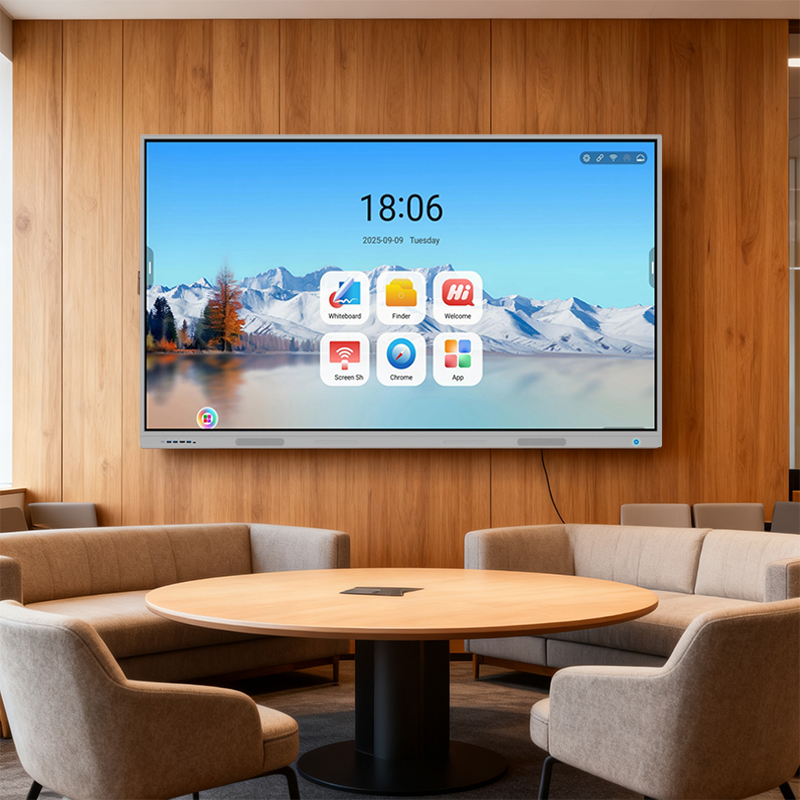
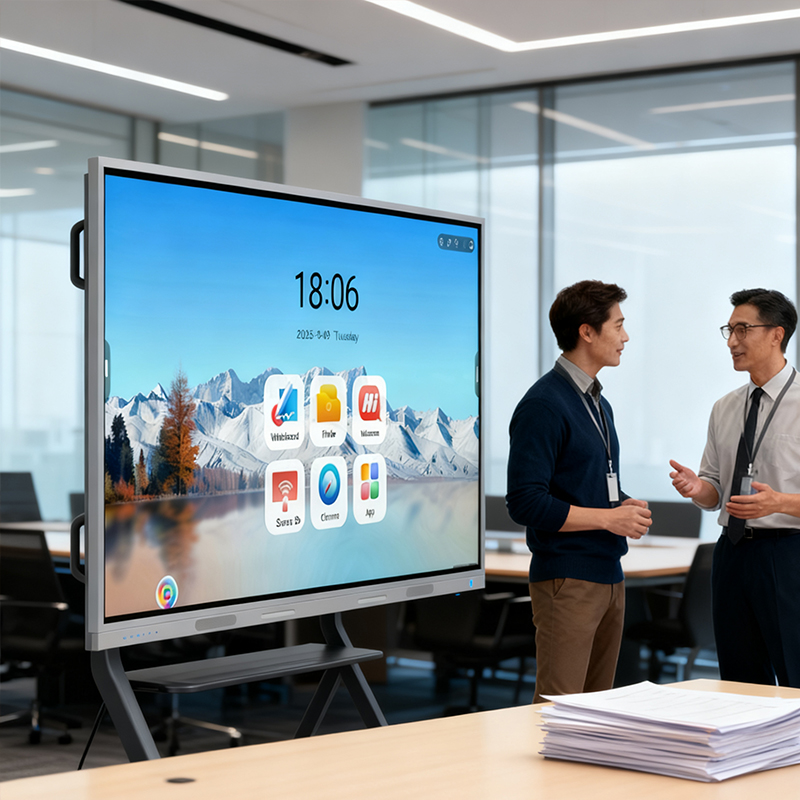
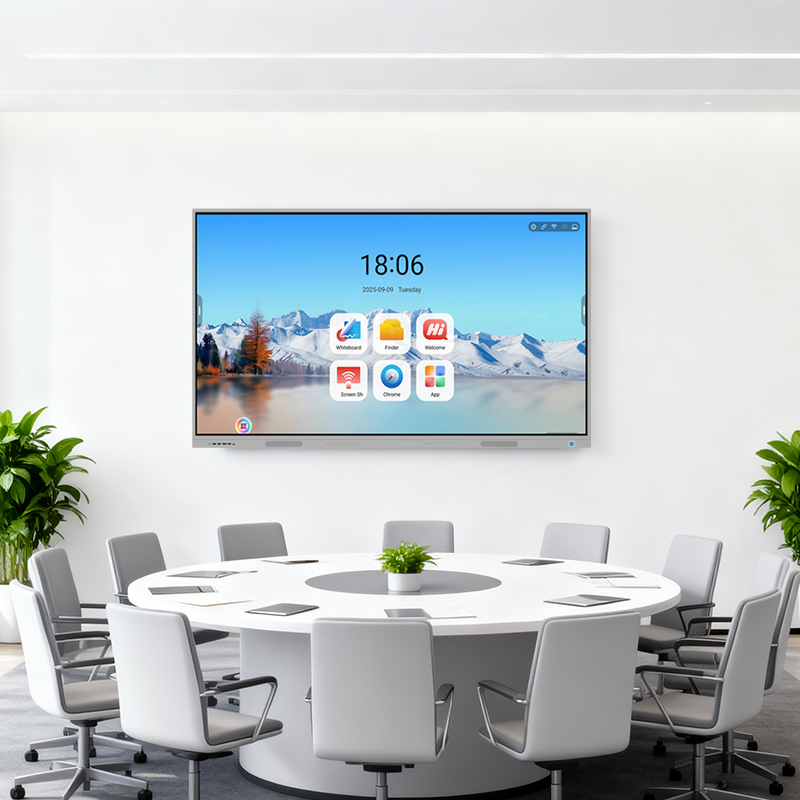
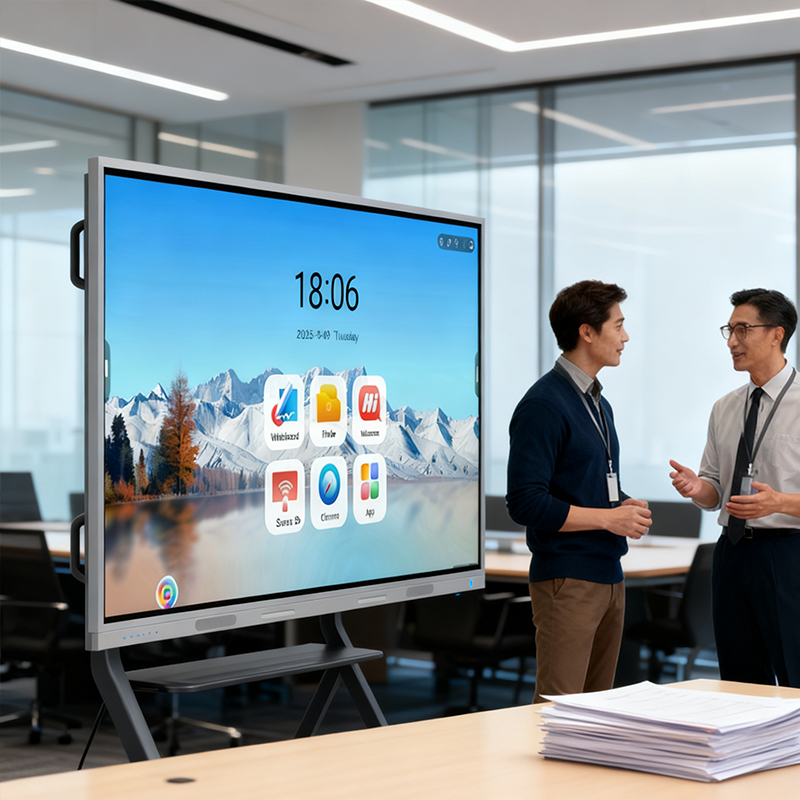
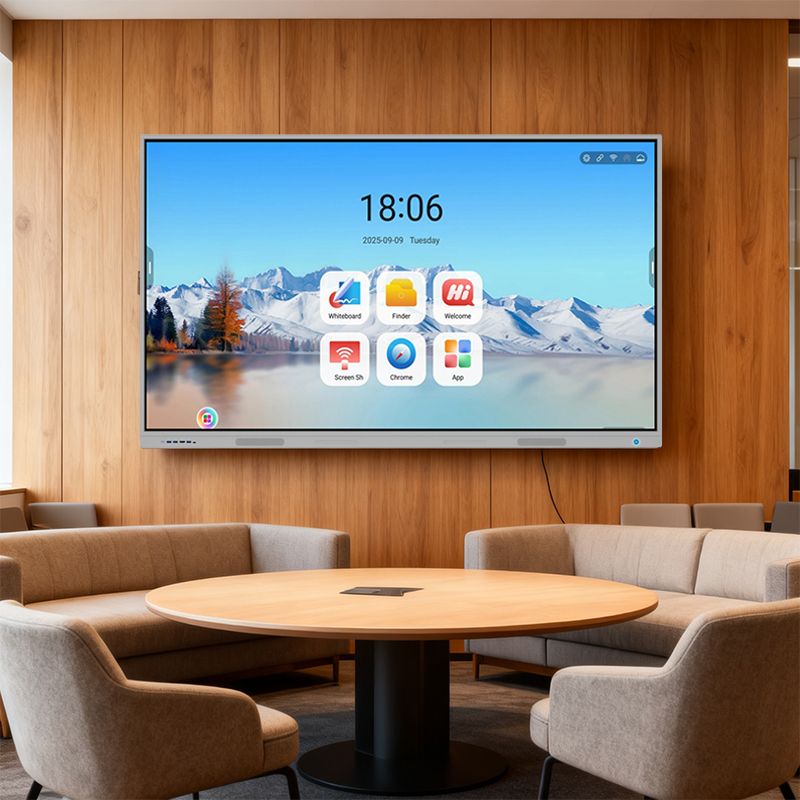
The R-series  interactive flat panel delivers a superior collaboration experience 

with its True 4K UHD display and advanced infrared touch screen for 

seamless writing.

Powered by the latest Android OS and integrated AI capabilities, it supports

real-time meeting transcription, live note-taking, and instant 

translation—making cross-language communication effortless. 

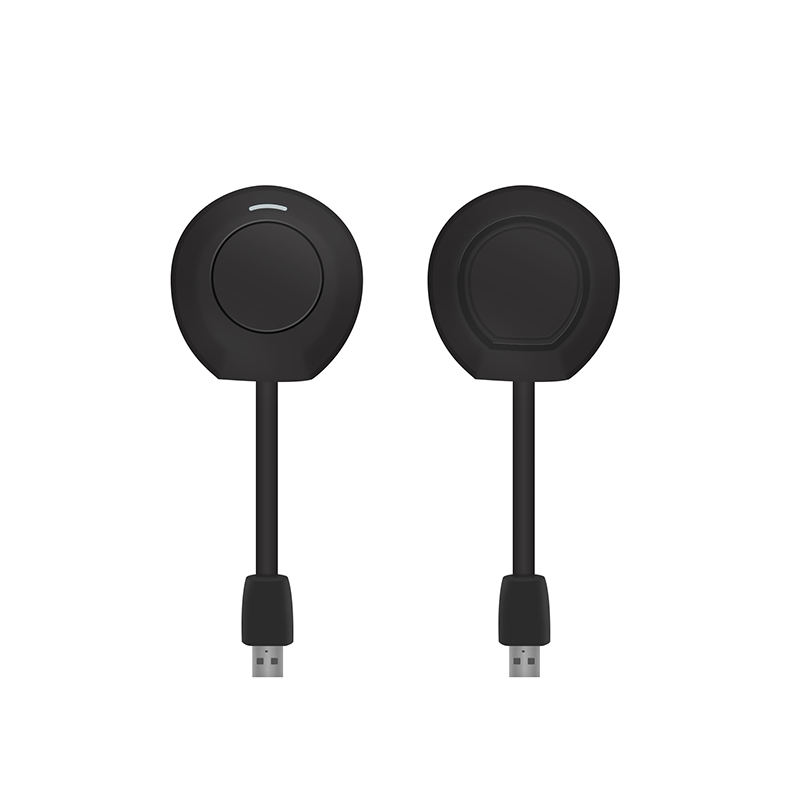
With wireless screen sharing (e.g., AirGo Cast), 

versatile connectivity, and user-friendly features like channel memory and 

auto wake-up, it’s the ultimate smart solution for modern meeting and 

presentation spaces.


  Save Files


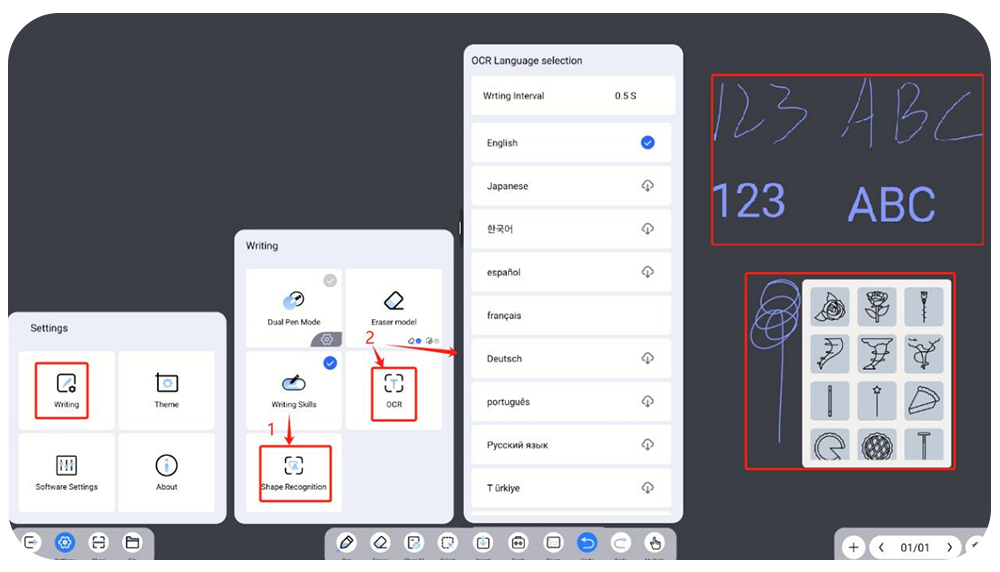
 1. File saving support for source files, pictures,pdf format files.

 2. Source file saving support for encrypted save and regular save.

 3. Encrypted saved files, don' t show thumbnails.

 4. Password verification is required to open encrypted whiteboard files.


image.png
image.png


 QR Code Share


1. Customize the drawing board to select file sharing.

2. Support file encryption sharing and regular sharing.


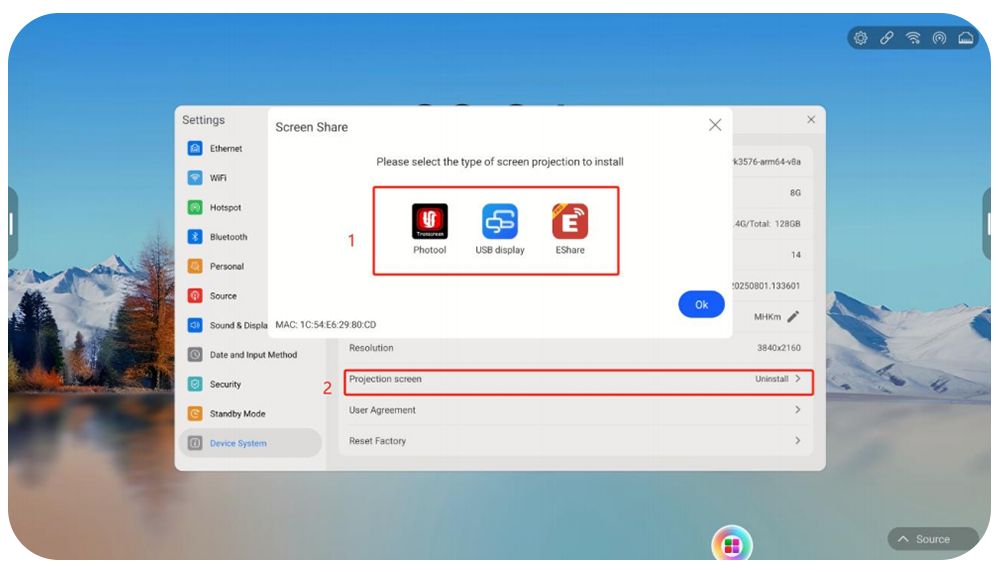
Wireless Screen Projector


1. Main interface: The main page of the receiving end will display 

the hotspot name,hotspot password, screen code and other information.

2. Turn on the device hotspot: "Settings > Hotspot >On",turn on the 

screen casting software interface.

3. Connect the USB port of the screen projector to the conference

tablet and wait for successful pairing.


image.png
image.png


4. Insert the screen projector into the USB/type-C port of the computer 

and wait for the computer to run the Client.exe program;

5. After the Client.exe program is successfully connected, click the button

on the screen projector to transfer the screen.


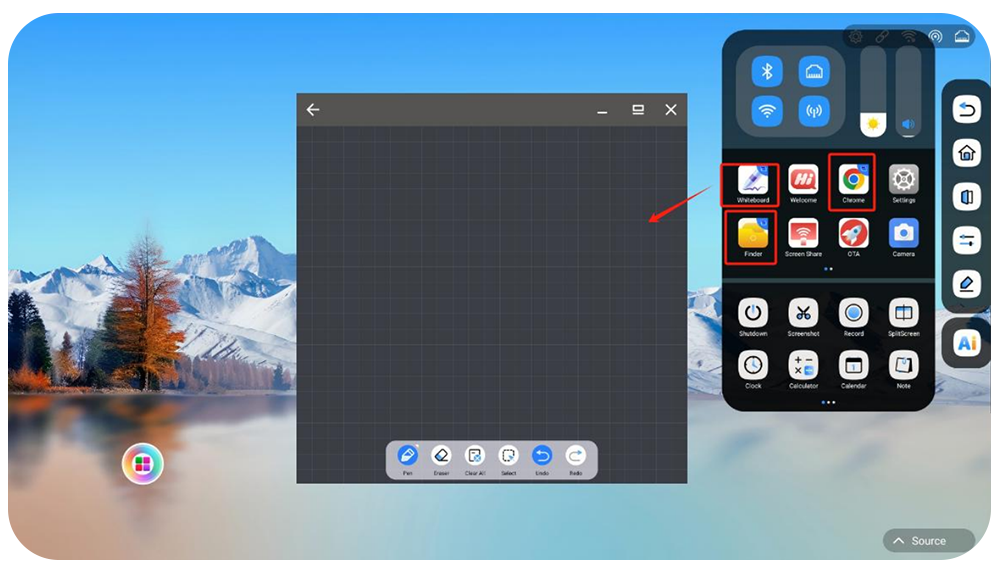
 Assistive Touch


The system defaults to displaying the assistive touch. If you don't need it, 

you can go to Settings>Display>Turn off assistive touch.

Home: You can go back to the home page in any interface.

P C: Open the OPS signal source directly.

Adjust: You can adjust the sound and brightness of the device in any interface.

Back: Back to the previous step.

Click and drag to move the assistive touch display position.

Customize: Click/Long press the customize icon, you can manage the

assistive touch function.Click on the widgets and applications icon, the 

software is automatically added to the assistive touch menu, click on 

the top close button, you can delete the shortcut from the assistive touch.


image.pngimage.png

image.png


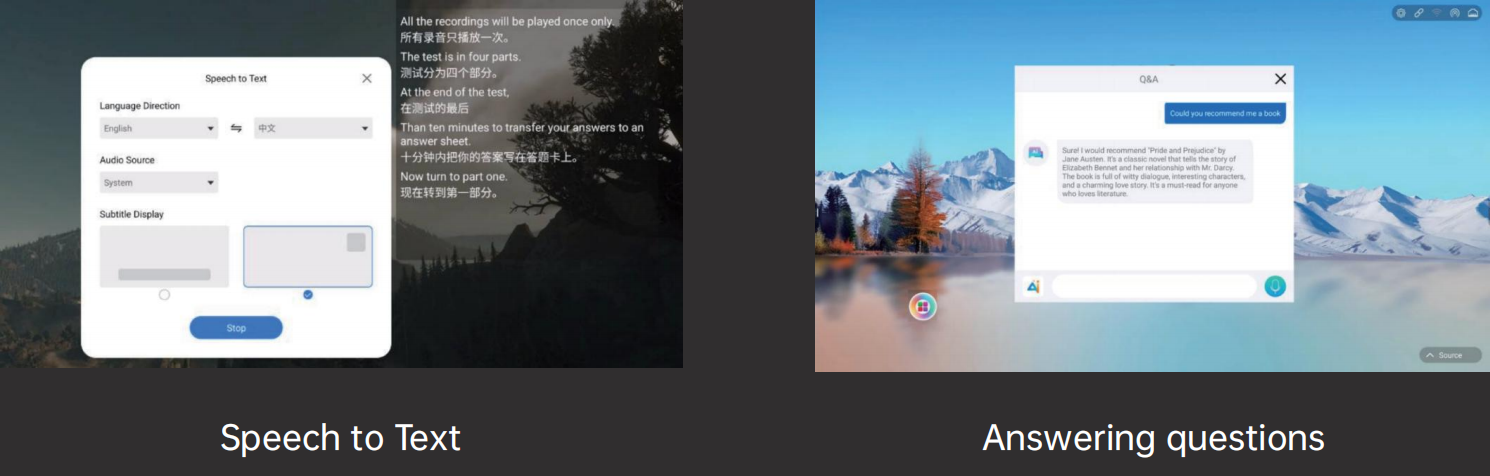
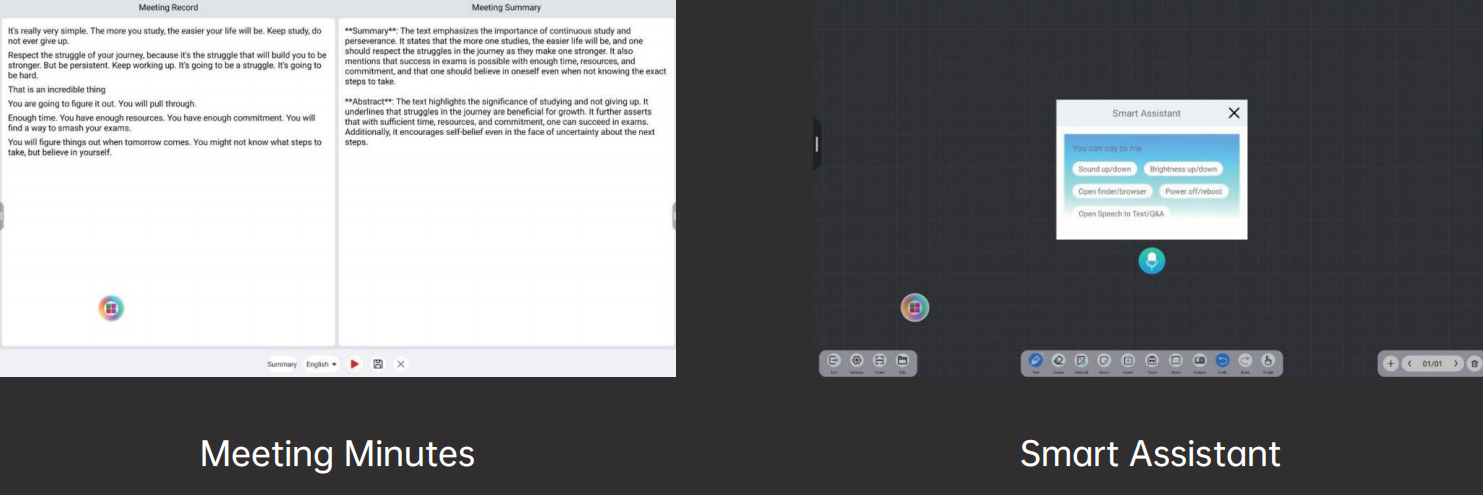
 AI


The functions supported by AI are: Speech to Text, answering questions, 

Meeting Minutes, and Smart Assistant (Smart Assistant supports three-finger

 wake-up and voice wake-up)

Speech to Text: support multi-Chinese translation,support microphone and system recording for different scenarios


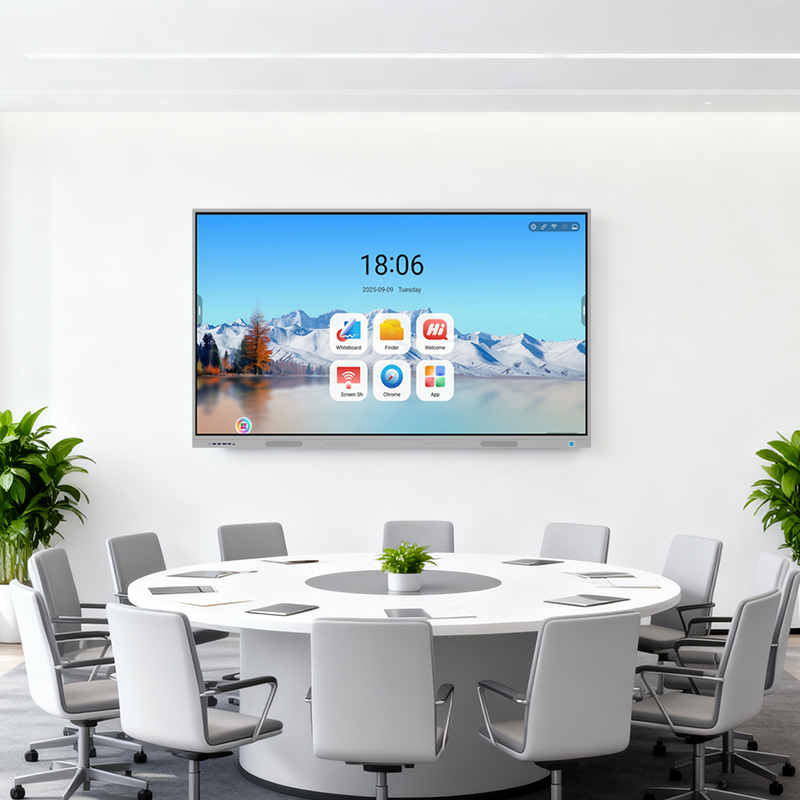
Various Scene Applications

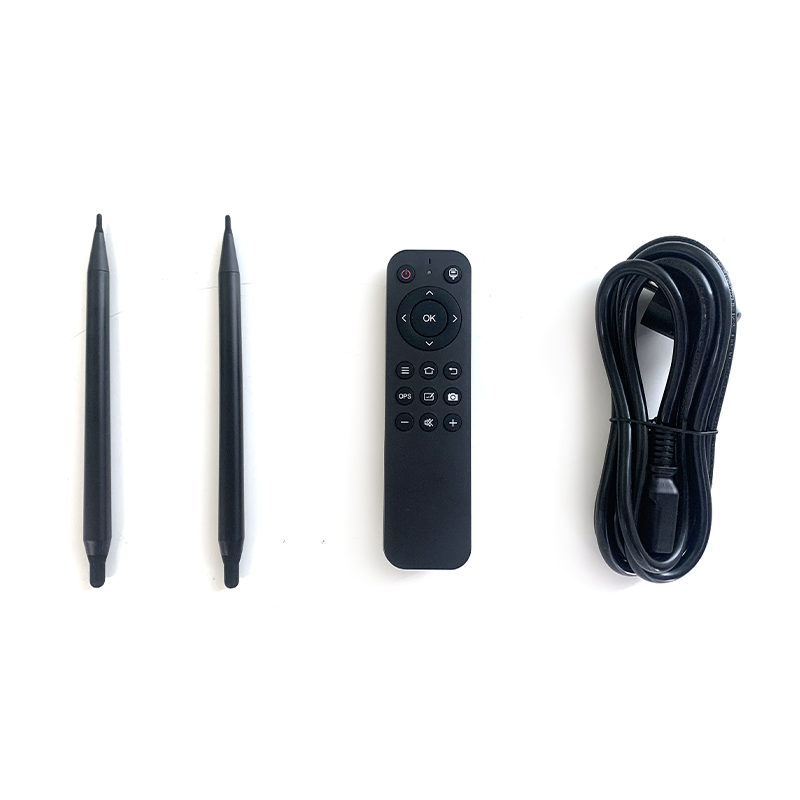
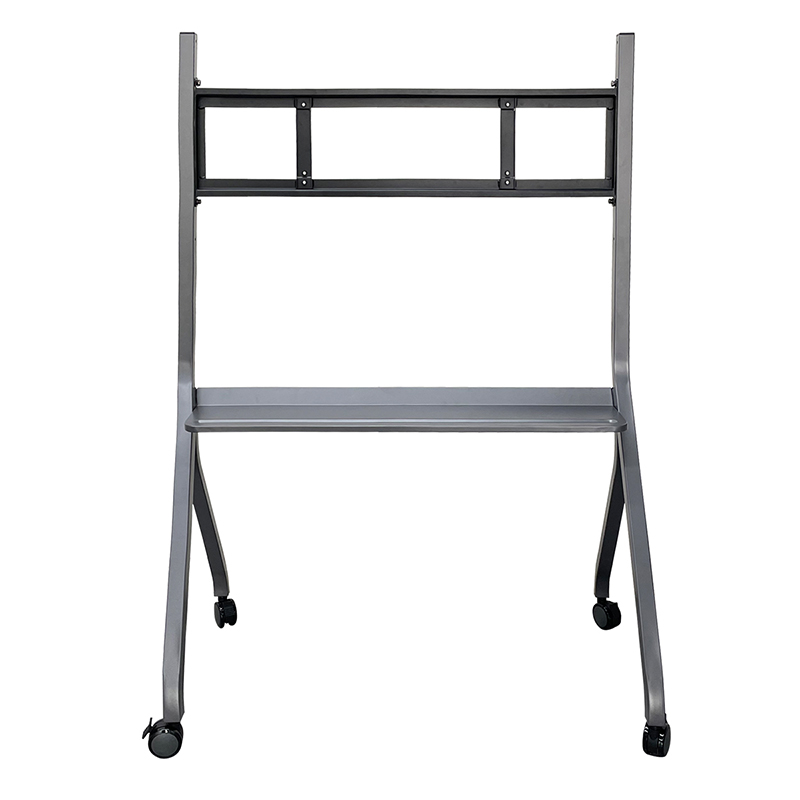
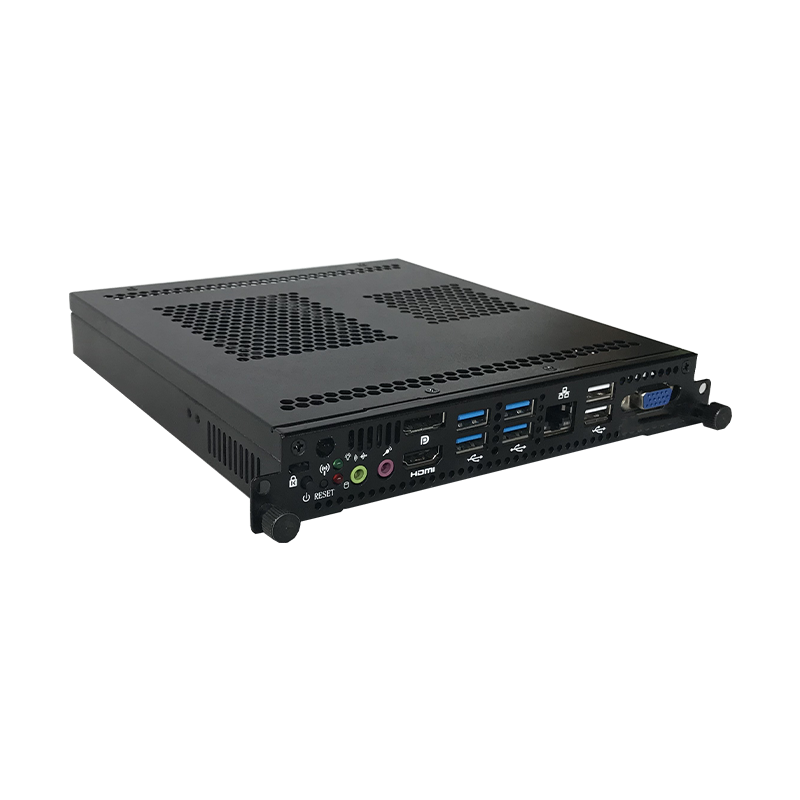
Accessories
Related products
Interactive Flat Panel GK-880T-R02YS
Interactive boards GK-880T-R7pro
Mobile 86(571)89986945 WeChat +8613706719639 WhatApp +8613706719639 Email service@hz-gaoke.com Email info@hz-gaoke.com Back